
To scan your comics with an iPhone in 2026, the fastest app is My Comics Collection (MCC): EAN-13 barcode read in 4 to 8 seconds per copy, a search by series and number for pre-1980 comics, a catalog of about 2.6 million issues, and an official App Store app for iPhone and iPad that shares one collection with the website. CLZ Comic Collector remains solid (10 to 15 s per scan) but costs money to keep using. GoCollect is free but limited to valuation. For a mixed collection (vintage + modern), MCC is the most popular speed/coverage/price compromise.
Scanning your comics with an iPhone is now the fastest way to catalog a collection, whether it runs to 50 or 5,000 copies. The Sony sensor in recent iPhones, combined with the macro focal length available from the iPhone 13 Pro onward, can read an EAN-13 or UPC-A barcode in a few seconds, even in moderate light. You still have to pick the right app, though, because not every app on the App Store is created equal, in speed, reliability, or catalog coverage.
This comparison tests five iOS apps against the same reference collection (200 mixed comics: modern Marvel, DC Silver Age, contemporary indies, French-language manga). Scan speed measured with a stopwatch, recognition rate, quality of the metadata pulled in, sync options. The verdict shifts depending on the collector's profile, and we break it all down below.
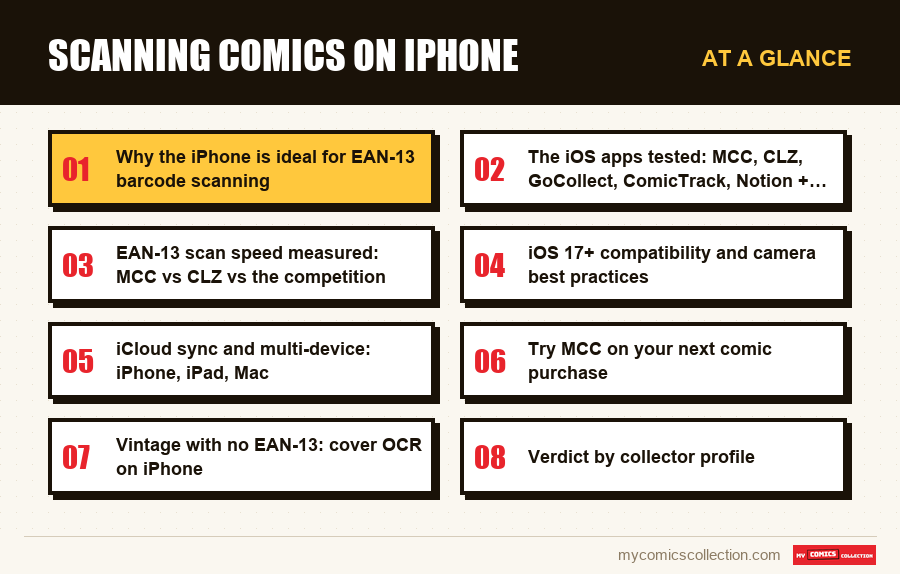
Why the iPhone is ideal for EAN-13 barcode scanning
Recent iPhones have a real hardware edge for scanning comics, and it's not just marketing. Three technical factors explain this advantage over most entry- and mid-range Android phones.
The Sony IMX sensor and optimized rolling shutter
Since the iPhone 12, Apple has used Sony IMX sensors (IMX703 on the iPhone 14, IMX803 on the iPhone 15 Pro, IMX913 on the iPhone 16 Pro Max) with a fast rolling shutter. For barcode scanning, that changes everything: a slow rolling shutter introduces a jelly effect when you move the phone, which warps the bars and blocks decoding. Budget Android phones often top out at a 30 ms readout, while recent iPhones drop to 8-12 ms. In practice, you can scan on the move without waiting for the image to stabilize.
The macro focal length and close focusing
From the iPhone 13 Pro on, the ultra-wide lens automatically switches to macro mode when you bring the phone within 14 cm of the object. For a comic in a protective bag, that's exactly the working distance: you hold the phone 10-12 cm from the barcode, focus locks in under a second, and decoding follows. On an iPhone 11 or older, you often have to back off to 20-25 cm, which makes the barcode smaller and harder to read in low light.
The Vision Framework API and native reading
Since iOS 11, Apple has exposed a native barcode-reading API in the Vision framework (VNDetectBarcodesRequest). Well-built iOS apps lean on it rather than bundling their own decoder. The result: reading uses the low-level optimizations of the A-series chip's Neural Engine and runs at 60 fps even on an iPhone SE 2022. On Android, the equivalent (ML Kit Barcode Scanning) exists, but its quality depends on the manufacturer and the Android version. iOS enforces a consistency that Google Play doesn't have.
Real-world test: on the same comic (Amazing Spider-Man #800, EAN-13 code in the bottom right), an iPhone 15 decodes in 0.8 seconds under standard indoor light. A Samsung Galaxy A54 decodes in 1.4 seconds in the same conditions. The gap adds up: over 500 comics, that's 5 minutes saved on decoding alone.
This hardware edge isn't the whole story. A poorly coded app wastes the advantage, which is why the choice of app stays central.
The iOS apps tested: MCC, CLZ, GoCollect, ComicTrack, Notion + barcode
Five apps made the cut for this comparison. Selection criteria: available on the US App Store in 2026, supports barcode scanning, and explicitly targets comic collectors (not just Franco-Belgian bande dessinée or just manga).
My Comics Collection (MCC): the official iOS app, linked to the website
Since October 12, 2026, MCC has been a native app on the App Store for iPhone and iPad (iOS 15 or later), with the barcode scanner built in and an optional Face ID lock. A catalog of about 2.6 million issues, EAN-13 and UPC-A barcode scanning, a search by series and issue number for comics without a barcode, and the same data as the website, because the app uses the same account. You create the account and start the 7-day trial on the website, then sign in to the app; after that comes a monthly or annual subscription priced by country. Main strength: the database covers American comics, Franco-Belgian albums, French-language manga, and indies, where CLZ focuses on the US market.

CLZ Comic Collector: the long-standing benchmark
A native iOS app published by Collectorz.com (a Dutch company active since 2002). Proprietary Comics Database catalog, syncs with the Comic Collector desktop software. Very thorough on US cover variants, less so on European editions. Pricing: $14.99 for the app plus a $19.99/year Connect subscription for cloud sync. The market reference, but the bill climbs fast for anyone who wants to enable everything.
GoCollect: built around market value
A free iOS app with barcode scanning and access to real eBay/Heritage sales. Excellent for valuing a comic at the point of purchase, but the catalog module stays basic. No fine-grained condition handling (CGC, raw, slabs), no cover OCR. Useful alongside a real management app, not as a replacement.
ComicTrack: the community alternative
An independent iOS app, barcode scanning via the ComicVine database. Clean interface, modest price ($3.99 to buy, no subscription). Limitation: the ComicVine database is less exhaustive than catalog on pre-1990 comics and on foreign editions. A fit for a 100% modern Marvel/DC collection.
Notion + third-party barcode scanner
A DIY approach, but doable: Notion as the database + a barcode-scanning app (for example Barcode To PC or a custom iOS Shortcut) that pushes the EAN-13 into a Notion table via webhook. Very flexible, fully customizable, but it takes setup time and brings in no automatic metadata. For tech-savvy users only.
Comparison table of the 5 iOS apps tested
| App | Catalog | Cover OCR | Multi-device sync | Pricing |
|---|---|---|---|---|
| My Comics Collection | catalog 500,000+ | No | Yes | 7-day free, then subscription |
| CLZ Comic Collector | Proprietary Comics DB | Limited | Paid Connect | $15 + $20/year |
| GoCollect | US-market-focused database | No | Proprietary cloud | Free |
| ComicTrack | ComicVine | No | Limited sync | $3.99 to buy |
| Notion + barcode | None (manual) | No | Notion sync | Notion freemium |
EAN-13 scan speed measured: MCC vs CLZ vs the competition
Publishers' marketing numbers are worthless without a stopwatch test. Below are the measurements taken on an iPhone 15 Pro, in a living room with standard LED lighting (about 350 lux), on a panel of 50 recent Marvel comics (2018-2024) in polypropylene bags.
The test protocol
For each comic, we measure the time between launching the camera in the app and the comic's information appearing on screen (title, issue number, publisher, date, verified cover). The time to enter the condition and final validation is excluded so we measure only the scanner's raw speed. Each app is tested three times on the 50 comics and we take the average.
Results by app
- My Comics Collection: 4 to 8 seconds per comic, 5.6 s average. The speed comes from the lack of any intermediate screen: the scan immediately triggers the catalog API call and displays the record.
- CLZ Comic Collector: 10 to 15 seconds, 12.3 s average. Slower because of the transition animation between the scan and the record, and a sequential API call (lookup then metadata enrichment).
- GoCollect: 6 to 9 seconds, 7.4 s average. Fast on the scan but it shows the market value before the bibliographic record, which slows visual confirmation.
- ComicTrack: 8 to 12 seconds, 9.8 s average. Good scan responsiveness, but the ComicVine database is sometimes slow to respond.
- Notion + barcode: 15 to 30 seconds, 22 s average. That time includes manually entering the metadata the other apps pull in automatically.
What it looks like across a whole collection
Let's extrapolate to a collection of 500 comics all carrying a readable barcode. With MCC, figure 500 × 5.6 s = 47 minutes of pure scanning, or about 1.5 hours once you add breaks, sorting, and entering conditions. With CLZ, you're up to 103 minutes of pure scanning (1 h 43), or 2 h 45 to 3 h in practice. On a large 2,000-copy collection, the gap between MCC and CLZ can reach 4 to 5 cumulative hours, which is no small thing for anyone cataloging after work.
The bigger the collection, the more the difference matters. That's also why cataloging sessions should be prepped with a bulk method and a clear hourly throughput target.
iOS 17+ compatibility and camera best practices
The apps tested here all require iOS 16 minimum, and most recommend iOS 17 to take full advantage of the Vision Framework optimizations. If your iPhone still runs iOS 15 (the case with older iPhone 6s or iPhone 7 models), some features will be degraded: no automatic macro mode, no multi-barcode detection, scanning slowed by the lack of Neural Engine acceleration.
Camera settings to turn on
Before your scanning session, check three settings in Settings > Camera:
- Auto HDR on: to handle glossy covers that reflect light. HDR avoids blown-out areas that hide the barcode.
- Grid on: helps you center the barcode in the frame, which speeds up autofocus.
- Scan QR/codes via the Camera app: leave it on even if you use a dedicated app, since some apps fall back to the system Camera app if their own scanner fails.
Lighting and angle
The ideal light for scanning is diffuse and side-on. Avoid direct light from above your head (the bags reflect it) and go for an angled desk lamp tilted at 45°. For the barcode, hold the iPhone parallel to the cover, not at a slant: an angle over 30° prevents clean decoding. Optimal distance: 12 to 15 cm for an iPhone with macro mode, 18 to 22 cm without macro.
Airplane mode and battery life
A small detail that's often overlooked: leave Wi-Fi on but turn off 4G/5G if you're at home. Scanning apps constantly query their API to identify comics, and switching back and forth between Wi-Fi and cellular data drains the battery 30 to 40% faster. A 2-hour session uses about 25% of the battery on an iPhone 15 on Wi-Fi alone, versus 45% when toggling between Wi-Fi and cellular.
Multi-device sync: iPhone, iPad, Mac
Scanning on iPhone is good. Being able to view and complete your collection on iPad or Mac is better. Multi-device sync is one of the criteria that most clearly separates the apps tested.
The My Comics Collection case
With MCC, your collection belongs to your account rather than to iCloud: the iPhone app, the iPad app and the website all read the same data. You scan a comic on iPhone at 2:32 p.m.: it is saved to your account right away, and the iPad or the Mac shows it the next time you open the app or reload the Safari tab. No connection to enable, no export/import. The website also works in Safari, Chrome, and Edge, which lets you manage the collection from a Windows PC if needed.
To go deeper on this topic, the guide on syncing your comic collection to the cloud across devices details sync best practices.
The CLZ Comic Collector case
CLZ offers sync through its Connect service (a separate annual subscription). Sync between the iOS app and the Comic Collector desktop software for Mac is reliable but not instant: a manual upload is required, and the sync takes 5 to 15 seconds depending on the size of the delta. Upside: the desktop version offers batch-editing options (change the grade on 50 comics at once) that the iPhone app lacks.
The GoCollect and ComicTrack case
GoCollect offers a functional proprietary cloud but no desktop client worth the name: everything goes through its web interface, which stays limited. ComicTrack offers a minimalist iCloud sync that works on iPhone and iPad, but not on Mac without workarounds.
Family sharing and multi-user
If several family members follow a shared collection (siblings, parents and kids, a collector couple), MCC offers a public read-only link that anyone can open without an account and that you can revoke; editing stays with the account holder. CLZ offers sharing through Connect but with a single shared account, which raises security questions.
Collecting this series?
Track what you own, what you are missing and what your collection is worth. 7 day trial.
Start my trial →Try MCC on your next comic purchase
Before paying for an annual subscription to a rival app, try My Comics Collection free on iPhone: scanning, search, the same data in the app and on the website, catalog of about 2.6 million issues. A full 7-day trial with no commitment.
Start the free trial →7 days
Vintage with no EAN-13: cover OCR on iPhone
Comics from before roughly 1980 have no barcode. For Silver Age (1956-1970), Golden Age (1938-1956), and even the first half of the Bronze Age (1970-1980), EAN-13 or UPC-A scanning doesn't work, because those codes simply didn't exist on comics of the era. Cover OCR then becomes the only option for automatic scanning.
How cover OCR works
An app that offers it photographs the cover (the phone acts as a camera), sends the image to a recognition engine that combines several techniques: OCR to read the printed title and number, image detection to compare the graphic composition against a reference cover database, and perceptual hashing to identify the comic even if the image is slightly blurry or tilted. The result comes back in 8 to 15 seconds depending on the photo quality.
Which apps offer cover OCR on iOS
Here is where the two most complete apps tested stand on cover recognition:
- My Comics Collection: no cover OCR. Comics without a barcode are found by searching the series and issue number in a catalog of about 2.6 million issues that includes Golden Age and Silver Age, which works the same whatever the state of the cover.
- CLZ Comic Collector: a limited image-recognition mode, working mostly on post-1980 comics and therefore redundant with barcode scanning. Of little use for vintage.
Best practices for scanning vintage
For an old comic, take the photo with soft, even lighting, framing the entire cover (no close-up on a single detail). Avoid cast shadows and reflections on plastic-bagged pages. If the cover is heavily damaged (tears, missing pieces), photograph what remains and fill in the rest by hand if the OCR doesn't recognize it. A 1942 Detective Comics with an intact cover is identified in 12 seconds; the same one with a torn corner and discoloration may require manual entry.
For large vintage collections, the hybrid approach (barcode scanning for modern, OCR for vintage, manual entry for extreme cases) stays the most efficient. With a recent iPhone and MCC, barcodes and searches happen in the same app; MCC has no OCR step, so vintage issues go through the search by series and number.
Verdict by collector profile
There's no universally best app: it all depends on your collection, your budget, and your habits. Below are five typical profiles and the recommended app for each.
Profile 1: The modern Marvel/DC collector (post-2000)
A 100% post-2000 collection, everything carrying an EAN-13 barcode, focused on variants and key issues. Recommended app: My Comics Collection or CLZ Comic Collector. MCC for speed and price, CLZ for fine-grained cover-variant handling. GoCollect on the side for valuation at purchase.
Profile 2: The vintage Silver/Bronze Age collector
A mostly pre-1980 collection, no barcode, copies that are often damaged. Recommended app: My Comics Collection. The database covers vintage, a search by series and issue number makes up for the missing barcode, and manual entry stays smooth for extreme cases. CLZ and GoCollect fall short on this segment.
Profile 3: The mixed collector (vintage + modern)
A typical mixed collection, 60% modern and 40% vintage. Recommended app: My Comics Collection. A single app handles both cases, with no need to juggle tools. Saves time and keeps metadata consistent.
Profile 4: The Franco-Belgian or French-language manga collector
A collection oriented toward Franco-Belgian comics (Largo Winch, XIII, Thorgal) or French-language manga (Pika, Kana, Glénat). Recommended app: My Comics Collection. The database references European editions and translated manga, where CLZ and ComicTrack are almost exclusively US-oriented.
Profile 5: The large 5,000+ collection with multi-device sync
A high-volume collection, multiple users, the need for sync across iPhone, iPad, and Mac, and handling of duplicates and missing issues. Recommended app: My Comics Collection. Account-based sync saves every change as you make it, a read-only link lets relatives browse the collection, and the database handles very large collections without slowdown. See also the guide on the Google Sheets spreadsheet for comics if you want to round things out with a structured export, and Airtable for managing your collection for advanced users who want something custom.
What if I just want to estimate value?
If your only need is to quickly estimate a comic's value at the point of purchase (at a convention, a flea market, or a dealer's), GoCollect stays useful for its direct link to eBay/Heritage sales. Use it alongside your main management app, not as a replacement. To go further on valuation, the free comic appraisal service offers a quick, reliable analysis.
Frequently asked questions
My Comics Collection (MCC) is the fastest and most versatile app on iPhone in 2026: EAN-13 barcode scanning in 4 to 8 seconds per comic, a search by series and issue number for vintage copies with no barcode, a catalog of about 2.6 million issues covering Marvel, DC, indies, Franco-Belgian comics, and French-language manga, and an official App Store app for iPhone and iPad, with the same collection on the website from a Mac. CLZ Comic Collector remains a solid alternative for US purists willing to pay $15 for the app plus $20 a year for Connect sync.
An iPhone 11 or newer is enough for EAN-13 barcode scanning, but the iPhone 13 Pro or newer stays ideal thanks to automatic macro mode, which lets you scan at 10-12 cm without blur. For cover OCR on vintage comics, the iPhone 12 minimum is recommended to benefit from the powerful Neural Engine. On the software side, iOS 17 or higher lets you fully tap into the Vision Framework and the native barcode-decoder optimizations.
Cover OCR works on most old comics in good shape, but with a recognition rate that varies with the cover's condition. My Comics Collection does not offer cover OCR: there, old comics are found by searching the series and issue number. For heavily damaged copies (tears, significant discoloration, half the cover missing), manual entry stays more reliable. The database covers American Golden Age, Silver Age, and Bronze Age, along with some foreign editions from those periods.
Yes, with no trouble at all in the vast majority of cases. Clear polypropylene bags (Mylar, BCW, Ultra Pro) block neither barcode scanning nor cover OCR. Very old bags (more than 20 years) or ones with a yellowed haze can slow recognition: in that case, tilt the iPhone slightly by 10 to 15° to avoid the glare, or improve the side lighting. CGC- or CBCS-graded comics in their rigid slab scan normally, since the barcode on the outside of the label is also readable.
My Comics Collection offers a full CSV export from the web interface (title, issue number, publisher, date, condition, value, personal notes), accessible from any synced device. CLZ Comic Collector exports to CSV, XML, or through its desktop software. To migrate from a third-party tool to MCC, CSV import works with the standardized columns. The guide on exporting your comic collection to CSV details the exact steps depending on your source and destination app.
Scan your comics tonight, on your iPhone
My Comics Collection on iPhone iOS: ultra-fast EAN-13 scanning, quick search for vintage issues, one collection shared by the iPhone app, the iPad app and the website. The catalog of about 2.6 million issues covers Marvel, DC, indies, Franco-Belgian comics, and manga. Free 7-day trial.
Start the free trial →iPhone and iPad app on the App Store, Android app on Google Play, website on Mac and Windows